
Cardsfor your corporate needs
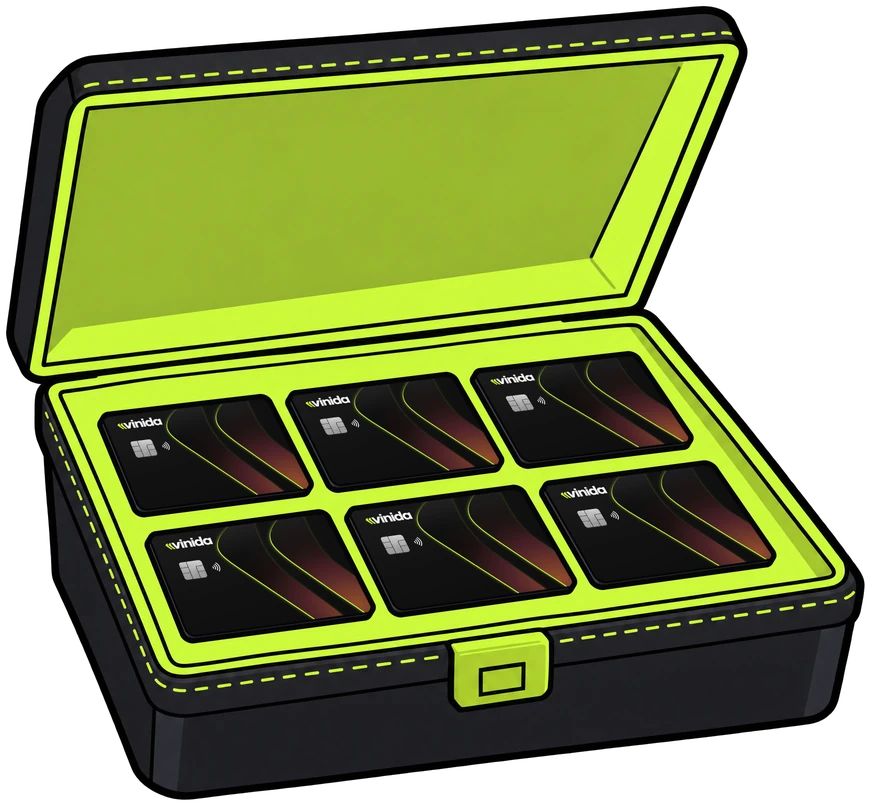
A corporate account from 5 cards: for media buying and corporate spends. Create cards in batches, top up all your cards at once and use the web cabinet for management and analytics.
How to get startedin five steps
You’ll need Telegram, an email you can open and a computer for the web cabinet.
1Open the bot
Find @Vinidapaybot in Telegram, send /start and pick a language. The Open Vinida button opens the app, and there’s nothing to install.
2Choose a corporate account
On first launch the app asks for the account type. Then confirm your email and set a password: the email becomes your login for the web cabinet.
3Send the application
A short form: your team’s name, what the cards are for and how many cards you need a month. The answer comes in the bot.
4Set a PIN
If you haven’t set a PIN yet, the app asks for one right after approval: 4 digits. Without it you can’t place orders, open card details or freeze cards.
5Sign in to the cabinet
From a computer, with Corporate sign-in at the top of the site: your email and password, any second-step codes you’ve turned on, and the app’s PIN last.
Already using Vinida? Confirm your email, set a password and apply in your profile, under Corporate account. Until approval your account works as a personal one, and your cards stay with you.
How to issueand top up cards
A corporate account’s new cards are issued from the web cabinet in batches of 5 or more.
1Collect the emails
Each card needs its own email address that you can open: one address, one card. Repeats in the list won’t pass.
2Upload the list
Paste the emails one per line or upload a .txt or .csv file. The cabinet checks each one: temporary mailboxes, .ru addresses and domains without a mail server won’t pass, and for a typo it suggests a fix.
3Pay for the batch
The whole batch is one payment, and you have 60 minutes. Send exactly the amount shown without rounding it: the cents tell us the payment is yours. Paying from an exchange? Add its withdrawal fee on top.
4Top up the cards
Cards are topped up together: one payment instead of a transfer per card. Same rules: exactly the amount shown and 60 minutes to pay.
The cabinetday to day
Where the money went
Right after sign-in you see the money on your cards, 30 days of spending and declines, and the latest operations. Filter operations by card and dates and export them to CSV to reconcile.
A name for every card
Name a card right in the batch list, with a comma after the email, or rename it later. A person’s or project’s name works, say Anna or Landing pages, up to 32 characters. The card list has search and a filter.
Freezing a card
A suspicious charge, or someone has left the team? Freeze the card: while it’s frozen, every payment on it is declined. The bank changes a card’s status at most once every 35 seconds.
Alerts in Telegram
By default the bot reports every operation on your cards. Too many messages? Turn them off in the cabinet: 3DS codes still come to the bot chat, so keep that chat.
A second sign-in step
In the cabinet’s security section, turn on Google Authenticator or a code in Telegram: after the password, the cabinet asks for the code. It also shows your sessions and sign-in history, and a session lasts at most 12 hours.
If somethinggoes wrong
A payment is declined
The bot sends a decline alert. Card frozen? Unfreeze it. Not enough money? Top up the card and try again. Otherwise check Help for what the card can’t pay for and the countries where it doesn’t work.
A payment isn’t credited
The order still waits for payment? Paste the transaction hash on the payment page. If the wrong amount arrived, the payment goes to review: don’t send more, we’ll write to you.
Money hasn’t reached the card
A top-up usually lands in a few minutes. If it isn’t on the card after 10 minutes, the bot tells you it has gone for a check and sends a button to the cabinet.
The cabinet won’t take your PIN
Told to set a PIN in the app first? A PIN is only set there. After 5 wrong PINs the sign-in ends: enter your PIN in the app, then sign in to the cabinet again.
Forgot the password or PIN
You change the password in the app: Profile, then Change password. You’ll need your PIN and a code from the email. Forgot the PIN? Tap Forgot the PIN? in the app: you’ll need your account password and a code from the email.
A sign-in that isn’t yours
The bot tells you about every new cabinet sign-in, and you can end a session that isn’t yours right from that message. Without a second step it writes as soon as the password is entered: if that wasn’t you, change the password in the app. The sign-in can’t finish without the app’s PIN anyway.
Didn’t find your answer? Write /support and your question in one message in the bot chat: the answer comes there. Or email support@vinidapay.com.