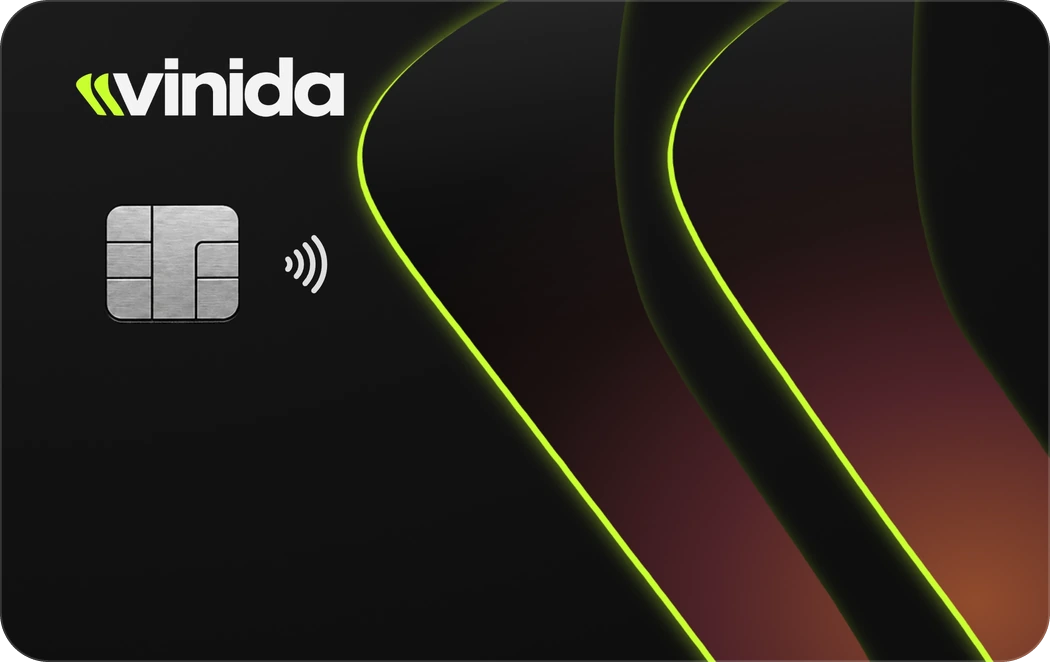
All under control,right in Telegram
Vinida opens from the bot: nothing to install. The card, top-ups, history and analytics in one place.

Every screenat hand
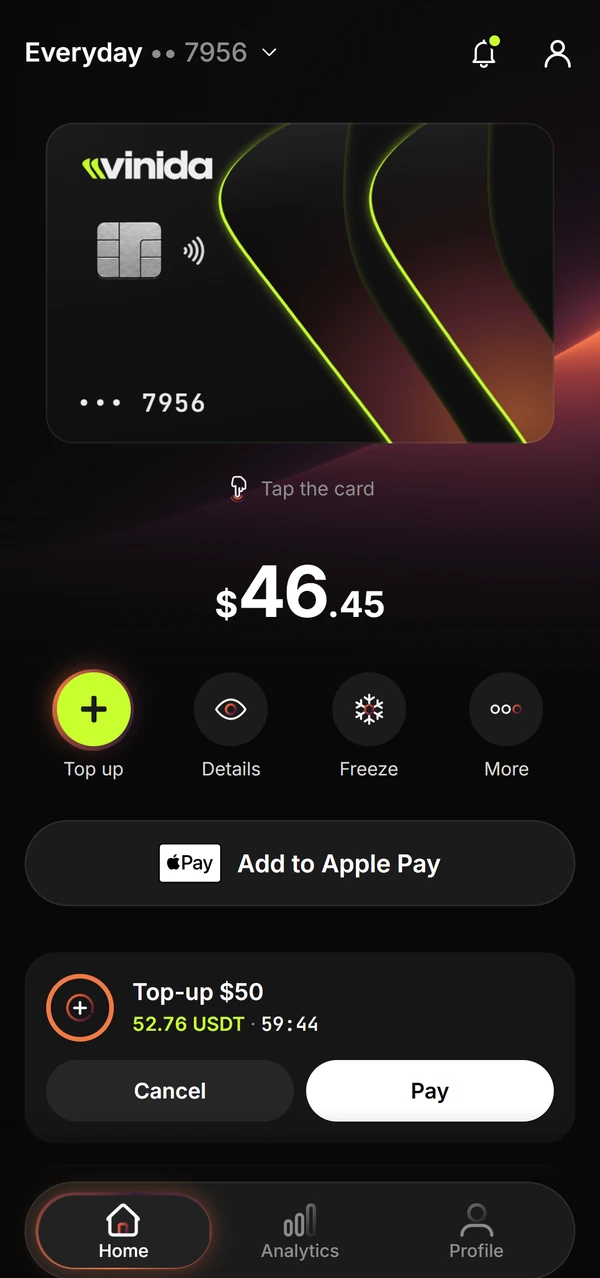
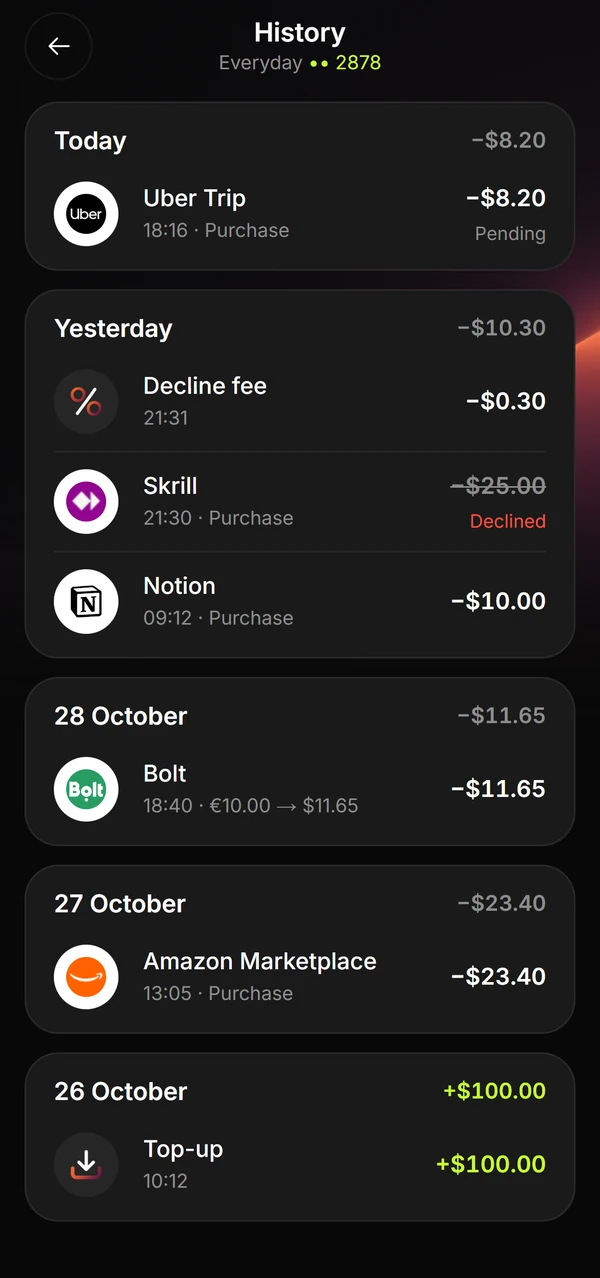
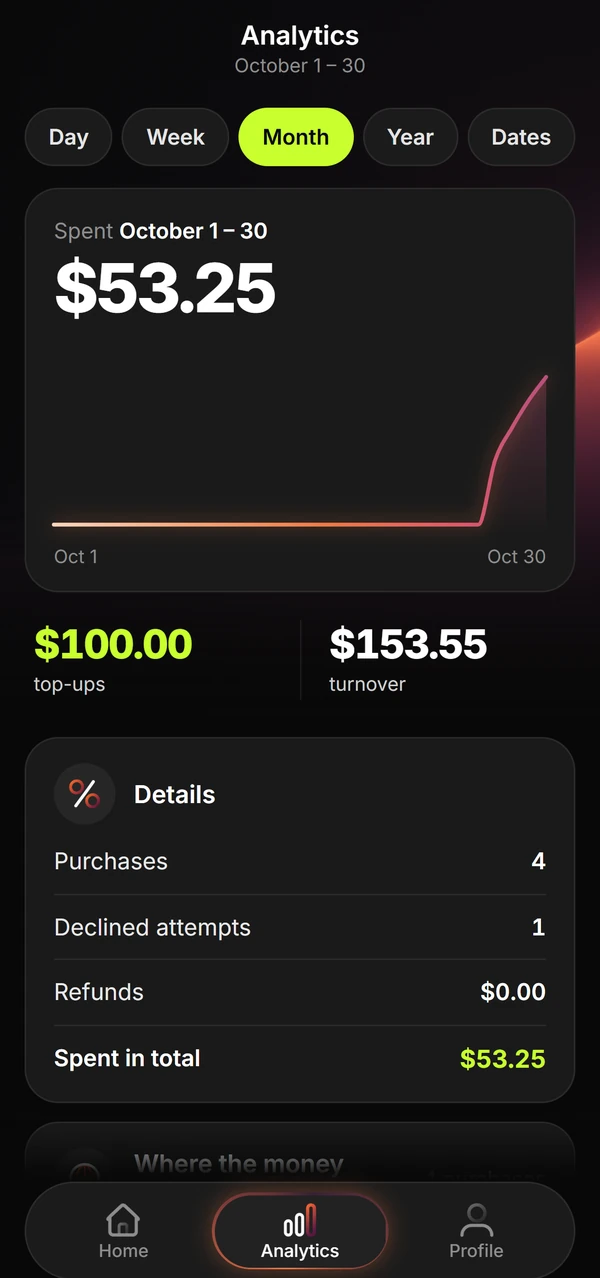
From the botto your card
Four steps to a virtual US dollar Visa, right in Telegram.
1Open the bot
Find @Vinidapaybot and send /start: it asks for your language, English or Russian. Then tap Open Vinida or the Vinida menu button.
2Tap Personal
That’s a card for yourself, and your account is ready in one tap. Next, a sheet asks for a name for Apple Pay and Google Pay: any name in Latin letters works, even a random one. You can skip it and set it later in the card details.
3Get the card
This is the only step that asks for an email: use a real one of your own, not a .ru address. Then send the amount the app shows, exact to the cent: you have 60 minutes to pay.
4Your card is ready
That’s what the bot writes a few minutes after the payment is confirmed, with the last digits and the balance. Every new card starts with $5.
The home screenbutton by button
Top up
In the coin list, USDT on TRON comes first, from $10, with other coins below, from $30. The full guide is on the top-ups page.
Details
The card turns over right on Home: number, expiry and CVV, with the billing address sliding out below. After 30 seconds it all hides by itself, and Hide puts it away at once.
Freeze
One tap and every payment on the card is declined until you tap Unfreeze. See a purchase you didn’t make? Freeze the card and write /support.
The Apple Pay button
Under the action buttons (Google Pay on Android). One tap opens the details, copies the number and launches the wallet. From there you add the card by hand: see the guide on the card page.
The bell
Notifications mirrors what the bot sends: payments, top-ups and account changes. Handy when an alert gets buried in the chat.
More
Your full history, the card screen, a new card and the language, English or Russian.
Paying onlinein four steps
1Open the details
On Home, tap Details and copy the fields one by one: the number, expiry and CVV each have a button. Not done in 30 seconds? Tap it again.
2If the shop wants an address
Copy the billing address: it slides out under the card with the details.
3Confirm the code
If the shop asks for a code, it comes to the bot chat as Confirm the payment. Check the amount and the shop. The code works for a few minutes; never share it.
4Done
After you pay, the bot sends the shop, the amount and the balance of card ••• 4821. The purchase also shows up in your history.
Keep the bot chat: that’s where confirmation codes arrive. If you set a PIN and more than 5 minutes have passed since you last entered it, the app asks for it before showing the details.
Your spendingat a glance
A card for every job
Get as many cards as you like with Get another card under More. Say, one for subscriptions and one for taxis, each topped up on its own.
Name them
Every card is called Vinida by default. Rename it on the card screen, which opens from More: 1 to 32 characters, and you won’t mix them up.
History
Your latest operations sit right on Home, and the full history is under More: purchases with shop logos, top-ups, refunds and declines.
Analytics
The tab at the bottom: spending by day, week, month, year or your own Dates, like the days of a trip. One card or all, with Where the money went splitting it by shop.
Something off?Here’s what to do
Payment declined
The bot tells you why right away. Card frozen: unfreeze it. Not enough money: top it up. Then try again.
The bank or shop said no
Check What the card can’t pay for and the countries where it doesn’t work, both in Help, which opens from Profile. If the decline comes after a hold, the money goes back on the card.
The card won’t top up
A frozen card can’t be topped up: tap Unfreeze first. Sent the money but the payment doesn’t show? On the payment screen, tap Payment not showing? and paste the transaction hash.
Freeze waits a moment
The bank changes a card’s status at most once every 35 seconds. Tapped again too soon? You’ll see a timer like Freezes in 20 s: the change goes through on its own, and Cancel stops it.
Blocked or under maintenance
If the issuer has blocked the card, write to support. If the card service is under maintenance, try again a little later.
The wallet wants a code
Apple Pay and Google Pay codes come to the bot chat. Wallet offering an email or phone you don’t know? Pick either one: the code still comes to the bot.
Still stuck? Write /support and your question in one message in the bot chat, and the answer comes to the same chat. Other ways are on the support page.